
Adding a Brand Logo to Your Ads in Amplify
Your brand logo is a trust signal and a recall driver — it reinforces your credibility in the ad experience and keeps your brand top of mind after the impression. This article explains how to add it to your ads in Amplify.
Why add a logo?
We recommend uploading your own logo across all eligible placements for consistent brand representation and best ad performance.
IMPORTANT: Carousel and Ads in Conversational AI will require you to upload a logo in order to launch the campaign. For all other campaign types, uploading a logo is highly recommended.
How to add your logo
You can upload a brand logo in two places inside Amplify:
Option 1: Default Campaign Settings
- Go to Default Campaign Settings in Amplify.
- Find the Brand Logo field.
- Upload your logo. This will apply as the default across your campaigns.
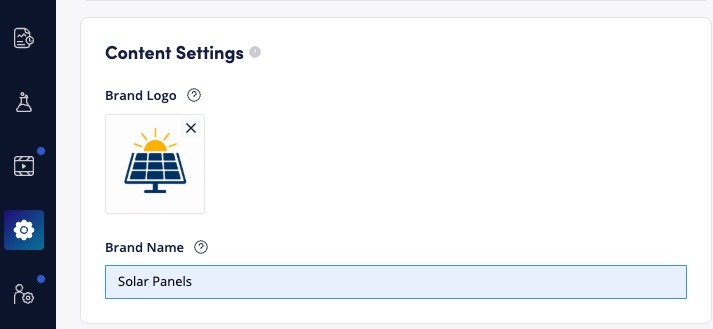
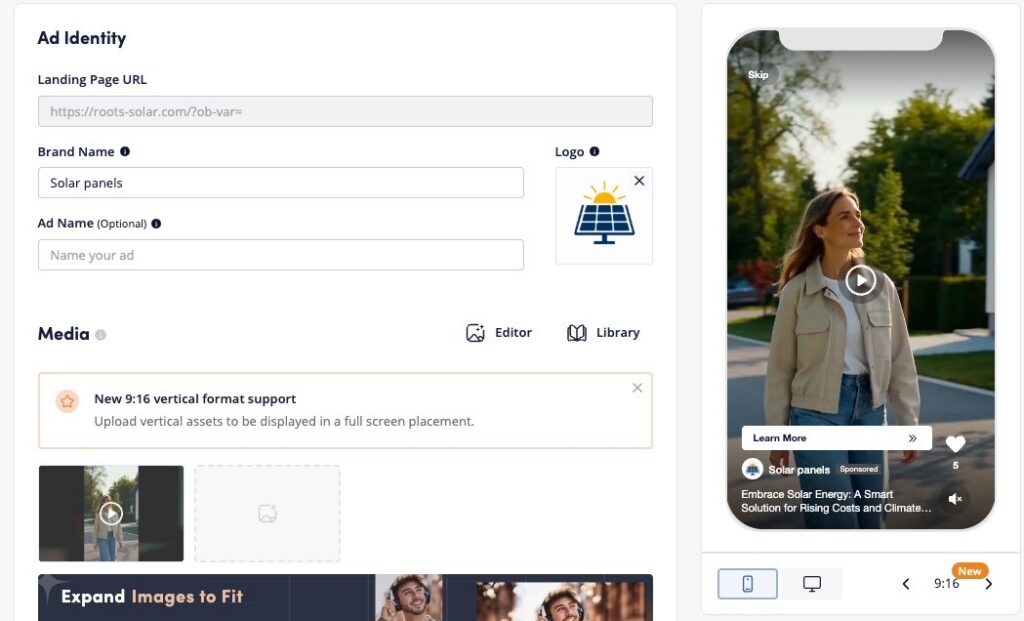
Option 2: Media creation page
- Open the media creation page for your ad.
- Scroll to the Ad Identity section.
- Click the logo upload field — it sits next to Brand Name and Landing Page URL.
- Upload your logo file.
Logo requirements
- File type: PNG
- Shape: Square (1:1 ratio)
- Minimum size: 128 × 128 px
Frequently asked questions
Where is the logo field required?
The logo is mandatory for Carousel and Ads in Conversational AI. In the Multi-Format and Standard campaign the logo is optional. However, we highly recommend uploading the logo to ensure the best ad experience.
What happens if I don’t upload a logo?
If you don’t provide a logo and a placement requires one, a default logo will be displayed automatically for new and existing campaigns. You can always replace the logo in the Default Campaign Settings or Media Creation Page.
Can I set a logo once and apply it across all campaigns?
Yes. Use Default Campaign Settings to set a campaign-level default. You can also upload a logo per creative on the media creation page if you need it to vary by ad.
Note: Placement eligibility for logo display may vary. If you’re unsure whether a specific placement supports logo, check with your Teads account manager.