
How to integrate your Google Analytics account to Outbrain?
Outbrain’s machine learning technology, combined with first-party analytics data, help us in better achieving our partner’s engagement goals and validate our data.
*Please note: Outbrain only supports Google Analytics 4 integration at this time.
How to set up GA integration via the dashboard?
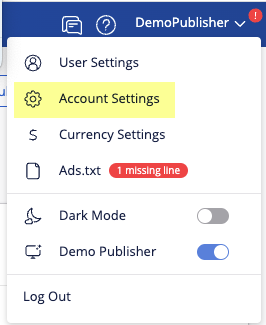
- Click on Account Settings under the user’s menu.
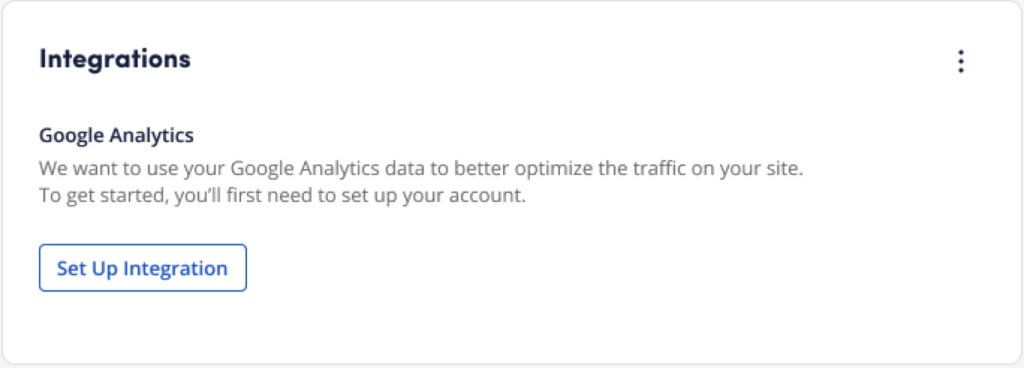
2. Click the “Set Up Integration” button.
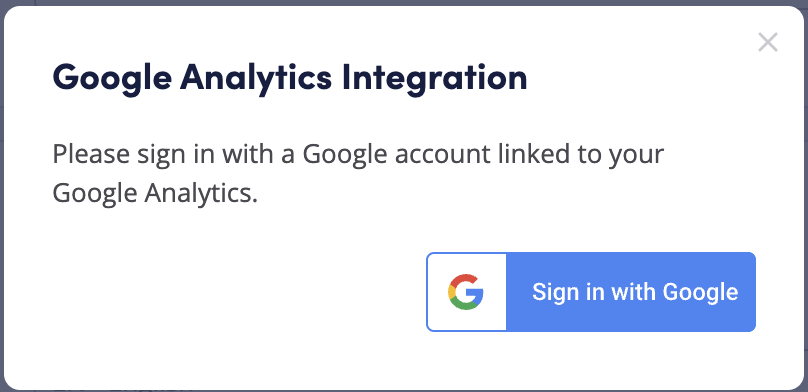
3. A pop-up message will appear, asking you to sign in with your Google Analytics account.
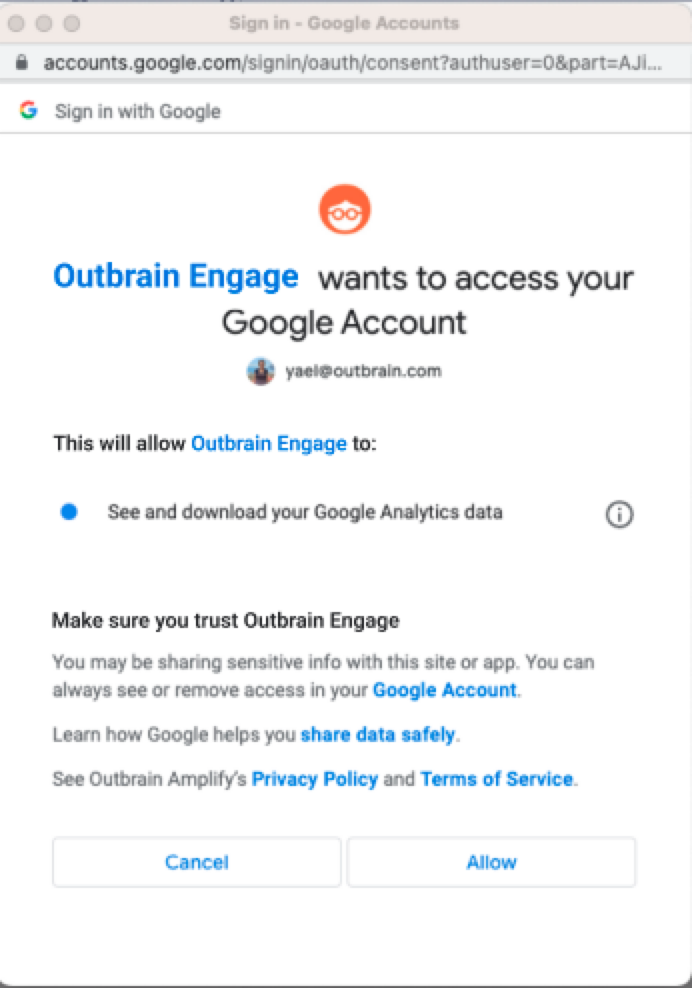
4. Once you’re signed in, you’ll be prompted to allow Outbrain Engage to access your Google Account (please note that Outbrain only accesses the Google Analytics data generated for Outbrain, and does not modify the data — it’s for read-only purposes). Click on “Allow.”
5. A new pop-up message will appear asking you to enter your Property ID (if using Google Analytics 4).
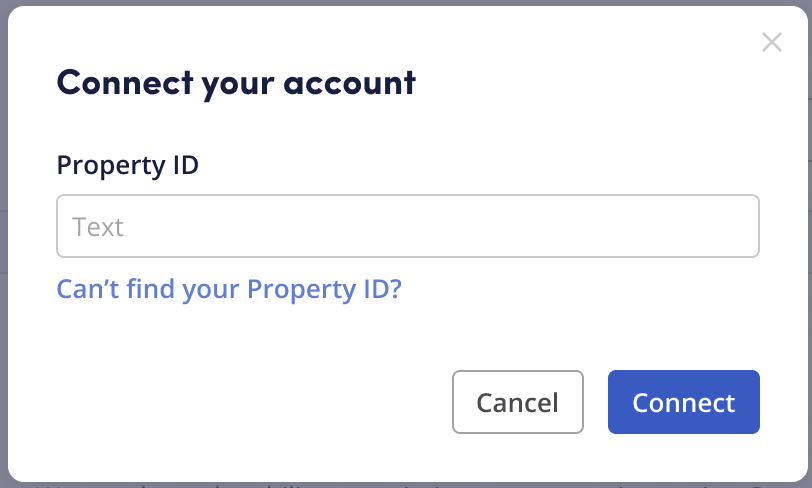
Not sure what is your Property ID and how to get it?
Open your GA4 account and click “Admin” at the bottom of the left-hand navigation bar.
In the Admin tab, navigate to the “Property” tab, click “Property settings” and you will see the property ID in the top right corner:
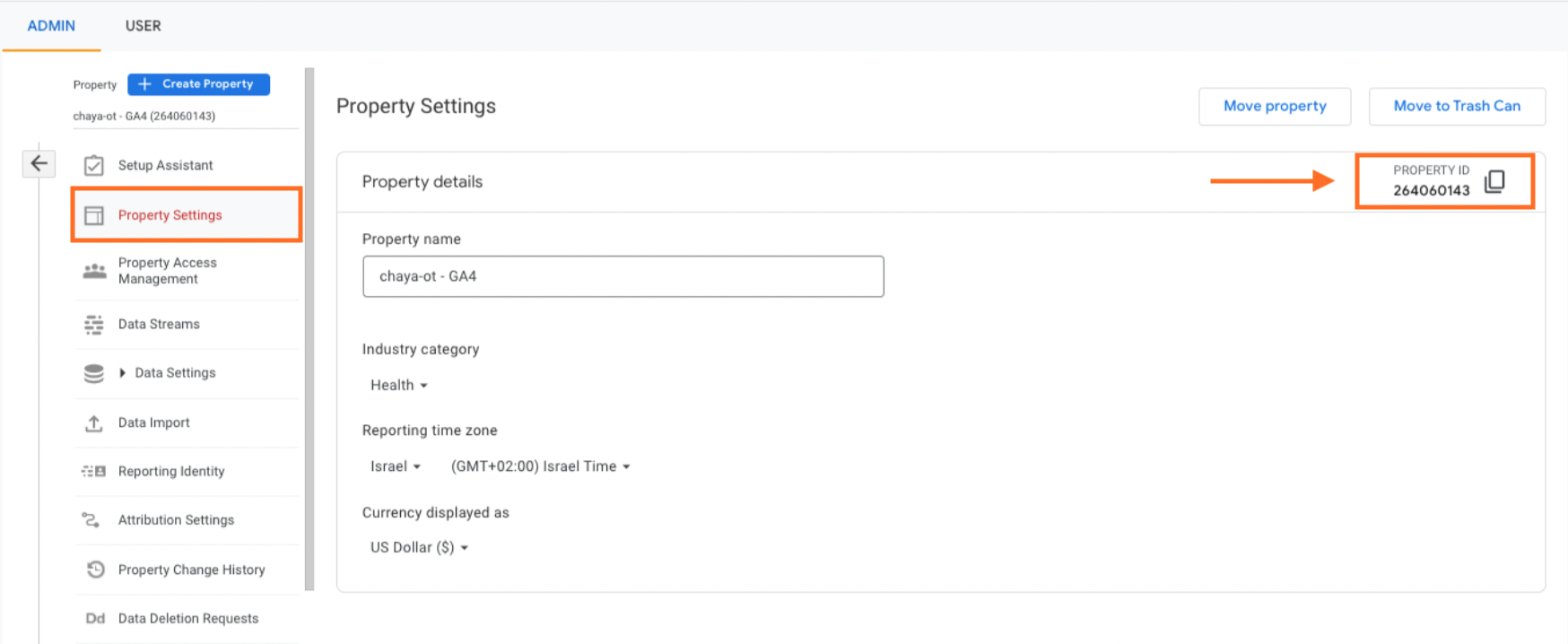
Copy and paste it in the below field, then click on “Save”.